Automatic Test Mode
Automatic Test Mode can be activated by clicking the [Auto Test] button or by using the a or A hotkey while on the Test Menu page.
In automatic test mode, the application automatically advances to the next test after you select Pass or Fail, eliminating the need to return to the main menu between tests. This workflow is significantly faster than manual testing and helps ensure that no tests are accidentally skipped.
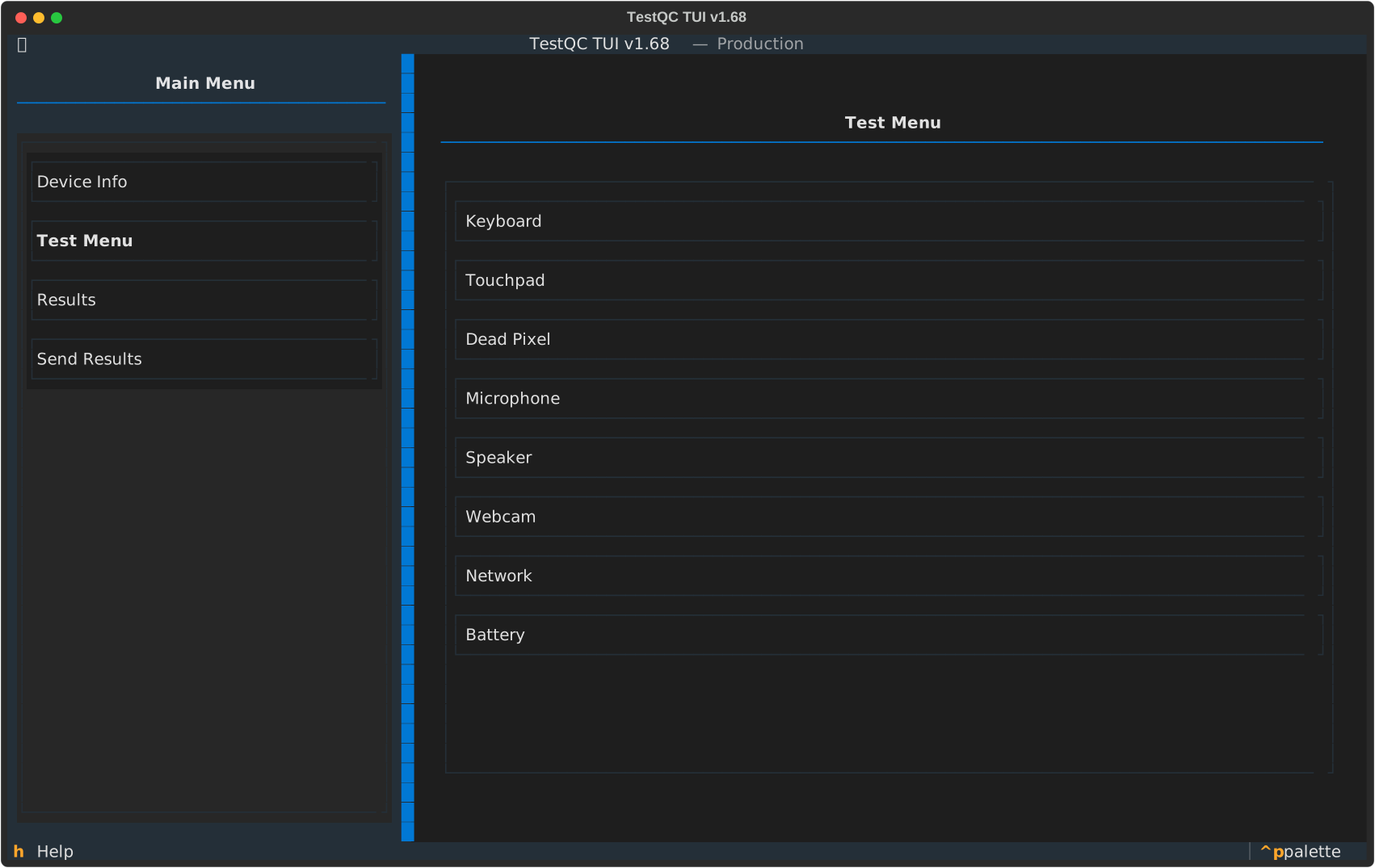
Once activated, the tests run sequentially starting from the Keyboard test through to the Battery test, before finally navigating to the Results page to display the overall status.
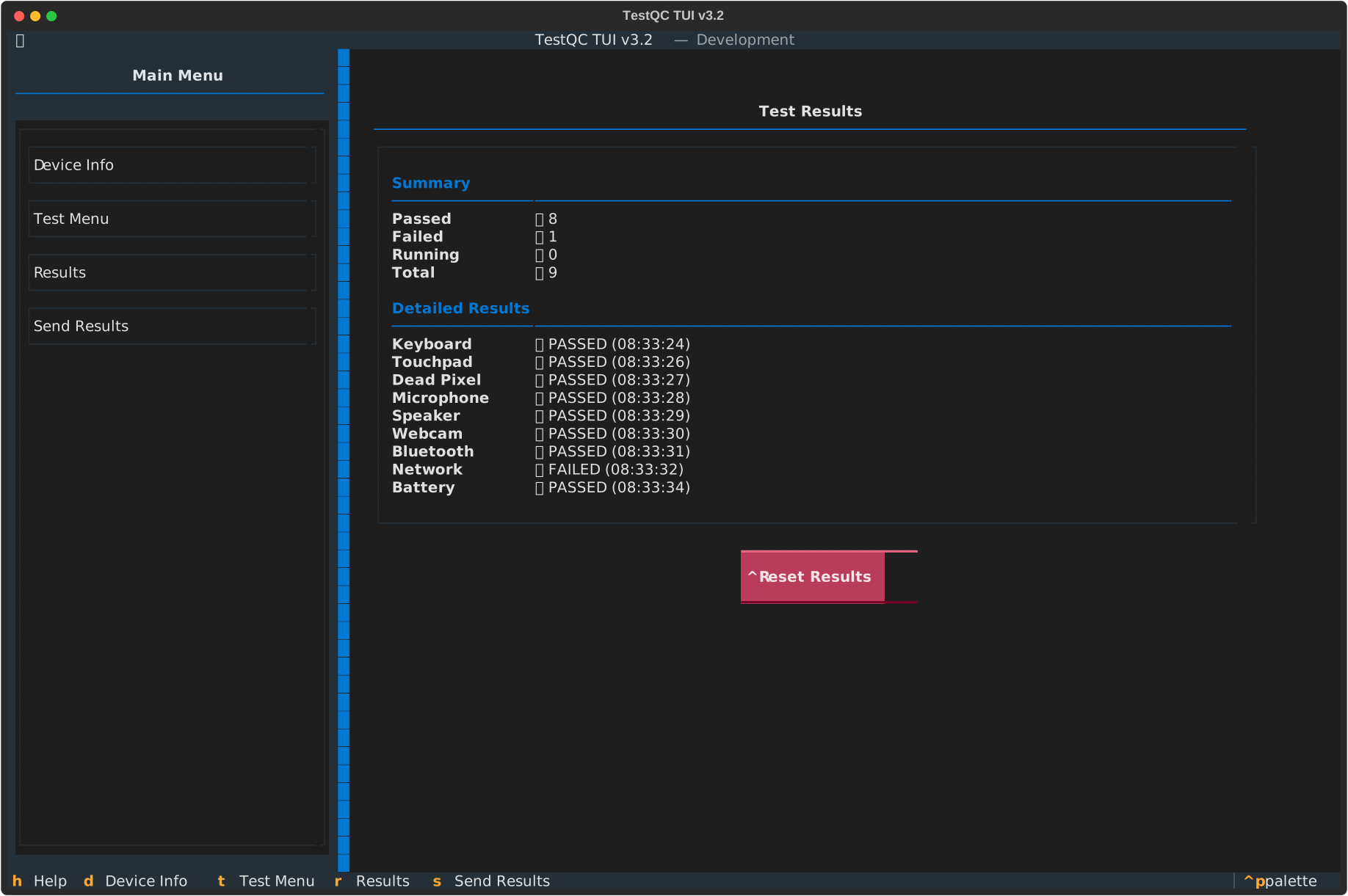
Once you are satisfied with the results, you can proceed by sending them to the TestQC server. To do this, select Send Results from the Main Menu or use shortcut hotkey s or S. Please refer to the Submit Data documentation for more detailed information.
Skipping a Test
If a component is not present on the DUT (Device Under Test), you can skip that specific test while in Auto Test mode by pressing the Cancel button. This allows the sequence to continue to the next available module without marking the current one as Pass or Fail.